All Olitt paid plans allow you to have more than one active website. If your plan is already activated, you may want to assign a website to an existing plan under 2 circumstances, for example
- You already have a website under the Starter plan, but want to add a new one to the same plan since you can connect 2 websites on every Starter plan
- You have a website in a subscription that is expiring or the Free plan, and you want to move it to a paid plan
To do this, follow the steps below.
Connecting a New Website to a Subscription #
1. Create the website by clicking the Create with AI button

2. Fill in the following questionnaire with the details asked – those details will be used to create your website.
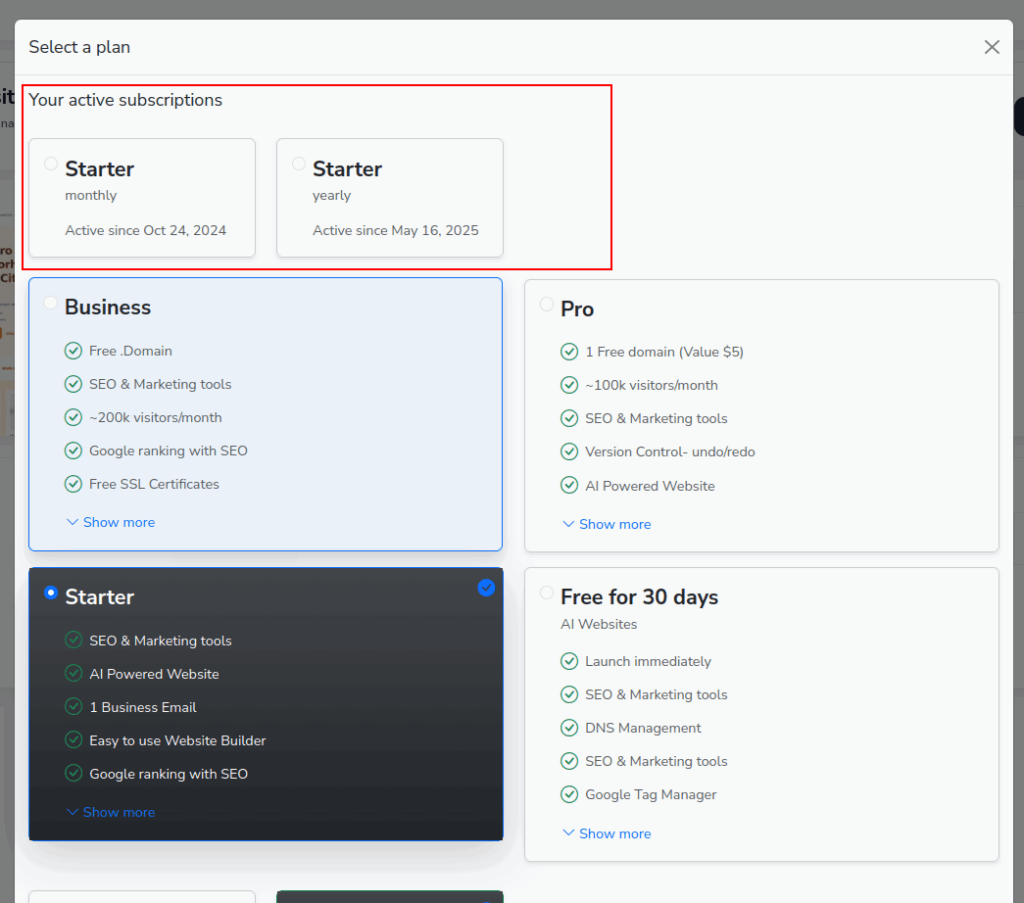
3. Once the website creation questions are completed, you will be asked to select a plan. Select a plan listed under Your active subscriptions as shown below.

4. Click Complete to connect your website to the plan and begin the creation process in the background while showing you progress.
Connecting an Existing Website to a Subscription #
If the website you need to connect already exists, e.g if it was created under the Free 30 Day plan, follow the steps below instead to Upgrade its subscription
1. On your Olitt dashboard, identify the website you want to work on
2. Click the Upgrade button on the website card as shown below

3. Select the desired plan from the ones listed under Your active subscriptions section
4. Click Complete Upgrade


